Blog • 2026
The 7 best blur apps in 2026 (free & paid)
Blurring photos is no longer just about hiding something—it’s about design, focus, privacy, and aesthetics. Whether you want to blur a background, censor faces, create depth-of-field effects, add motion blur, or anonymize sensitive content, these are the best blur apps in 2026.
Try BlurFish in Canva
Blur backgrounds, faces, objects, shapes, and text inside Canva.
Open BlurFish in CanvaThe 7 best blur apps in 2026 (ranked)
🥇 1) BlurFish (best overall blur app for Canva & web)
If you want a simple, powerful blur tool that works seamlessly inside Canva, BlurFish is the best option for most creators. It’s built specifically for:
- Fast background blur
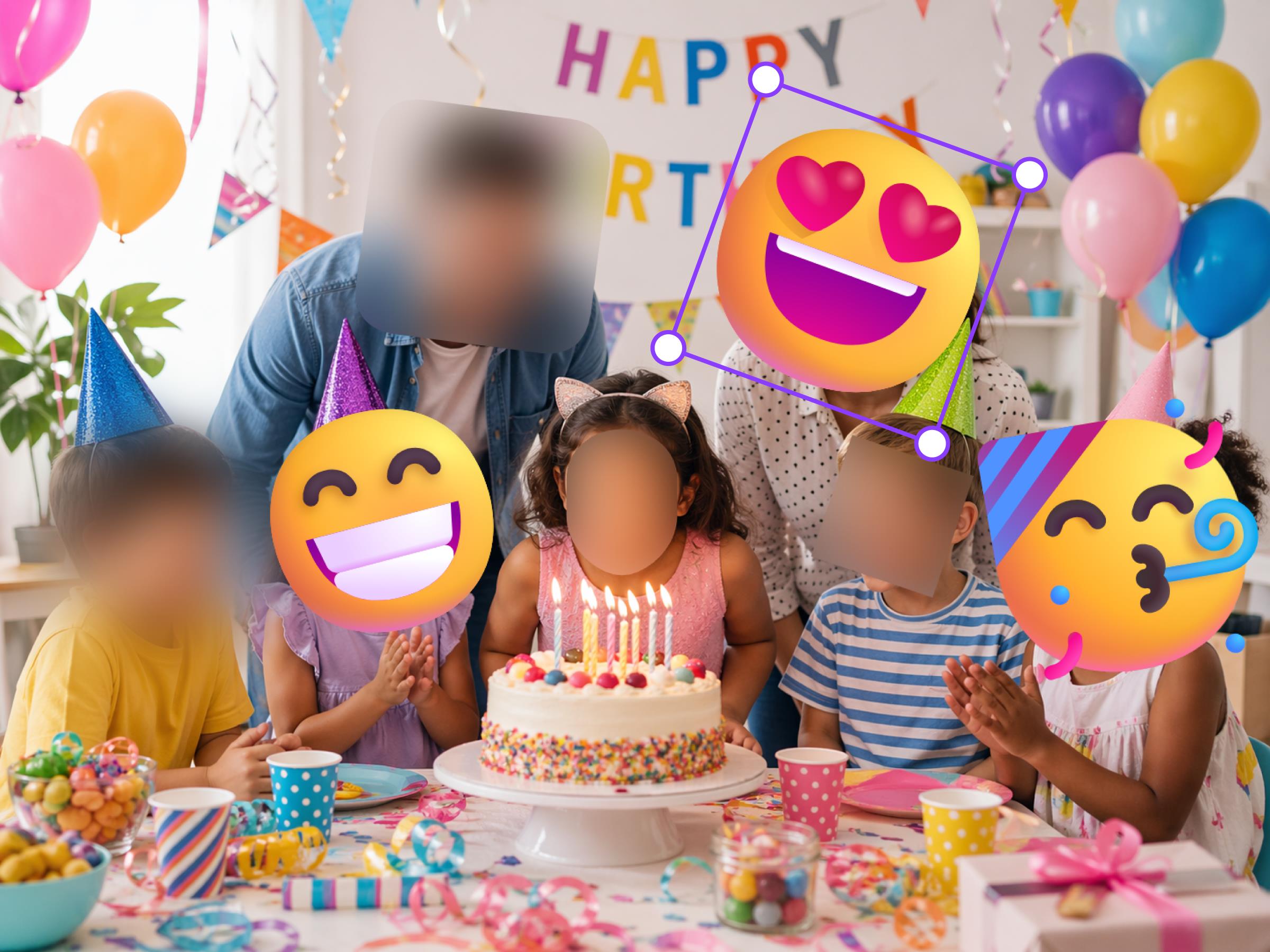
- Face censoring (masking workflow)
- Pixelation effects for anonymization
- Soft & motion blur styles
- Simple controls (no “pro editor” complexity)
Why BlurFish is #1
- Works directly inside Canva
- Multiple blur styles (not just one slider)
- No Photoshop skills required
- Great for social media & marketing
- Privacy-friendly approach: blur with masking + effects (no AI detection required)
Unlike traditional photo editors that bury blur inside advanced menus, BlurFish focuses entirely on making blur fast, controllable, and creative. If you design in Canva, it’s the most seamless workflow.
👉 Try it here: blur.fish
Best for: Canva users, social media creators, quick blur edits, privacy masking.
2) Adobe Photoshop (best for advanced users)
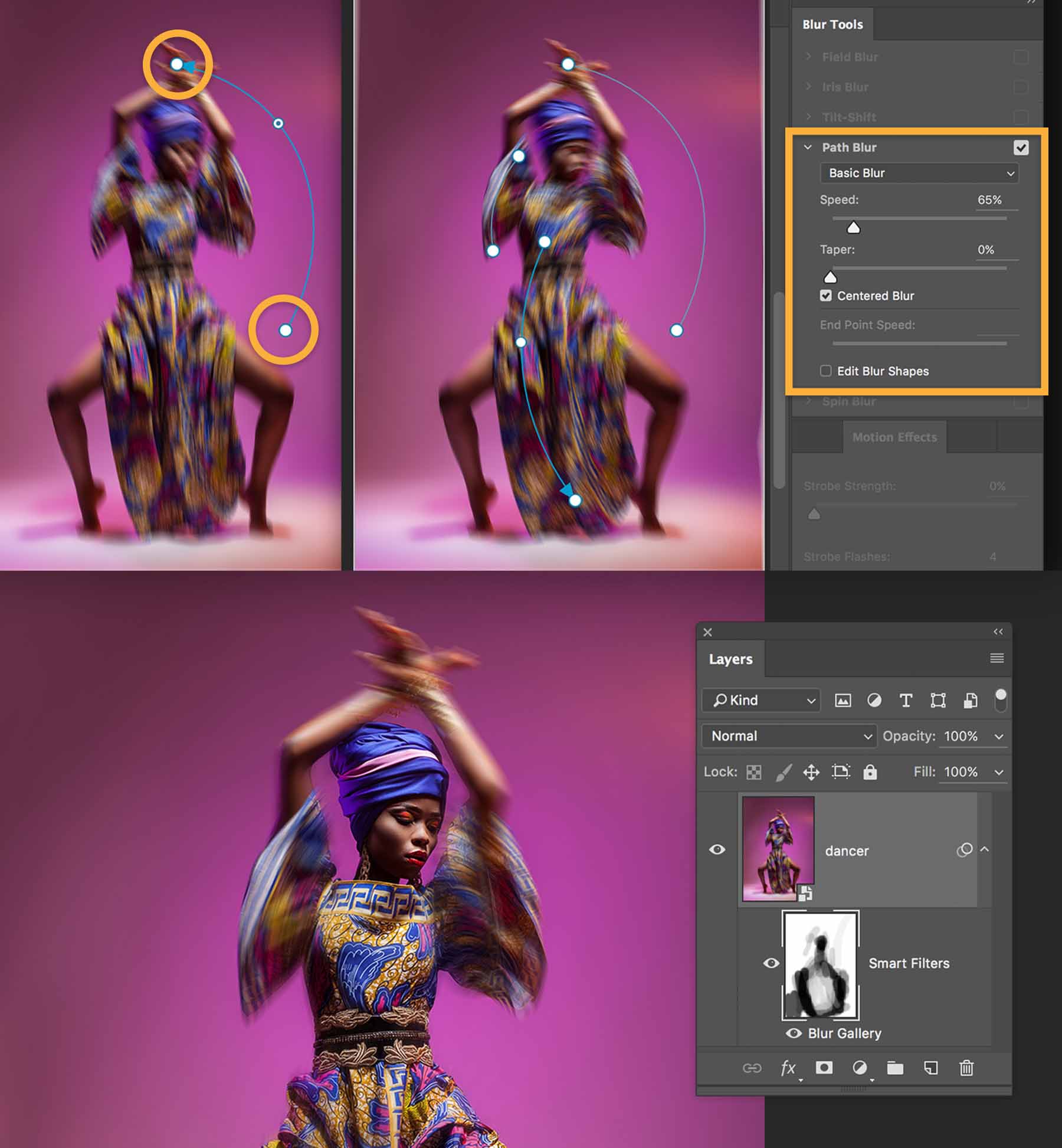
Photoshop offers professional-grade blur tools like Gaussian Blur, Lens Blur, Field Blur, and Motion Blur. It’s extremely powerful—but it comes with a steep learning curve, a subscription cost, and it can be overkill for simple blur tasks.
Best for: Professional designers, photographers, high-end editing.
3) Fotor (best free online editor)
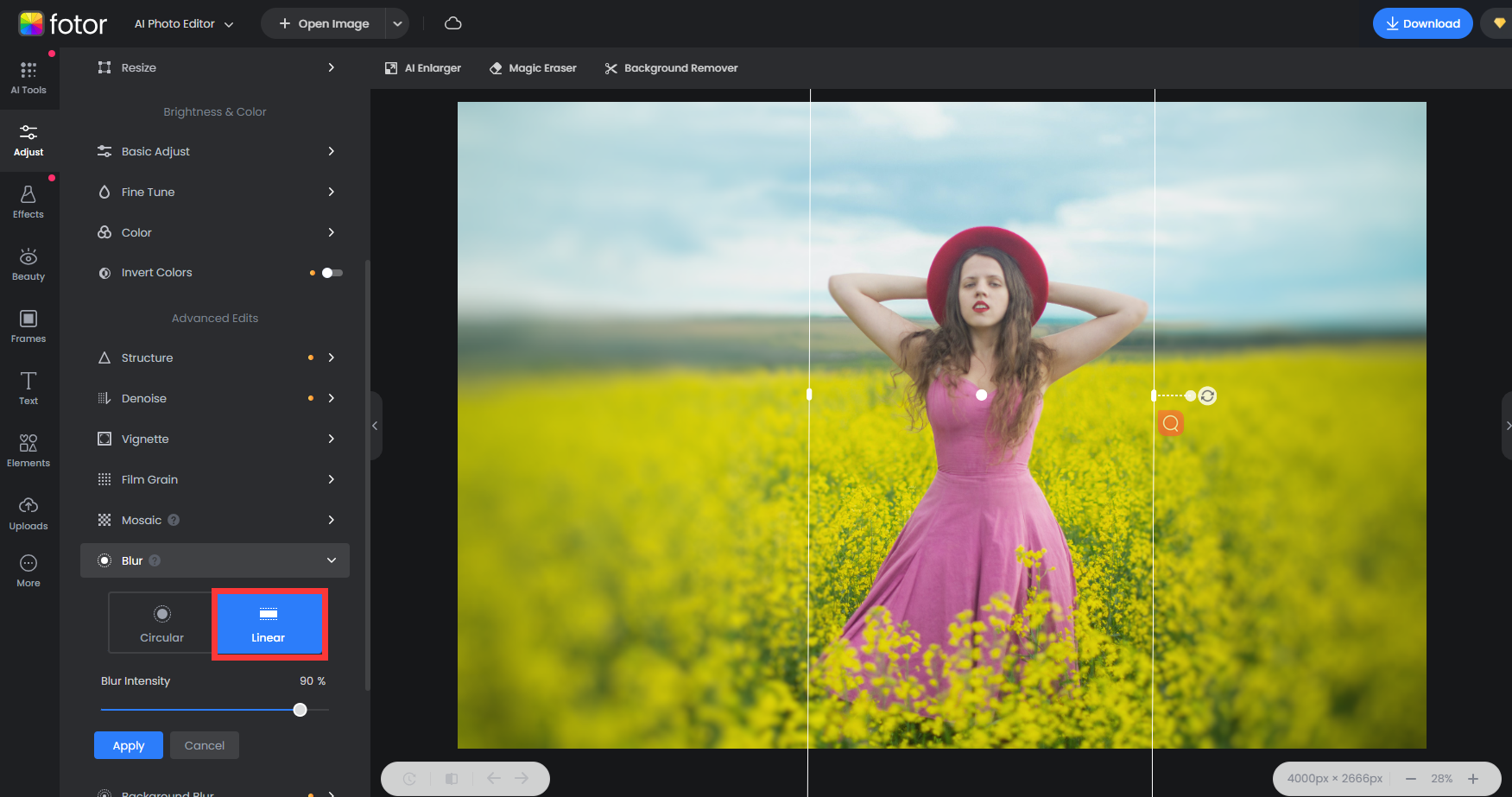
Fotor is a web-based editor with easy blur tools and AI-assisted background blur options. It’s convenient (no install), but some exports and features may be limited depending on plan.
Best for: Quick online edits, basic background blur.
4) Pixelcut (best for AI background blur)
Pixelcut focuses on AI-powered background removal and blur—great for product photos and ecommerce workflows. If you want more manual control over creative blur styles, you may find it limiting.
Best for: Ecommerce sellers, product photography.
5) Canva native blur tool
Canva includes a built-in blur slider under “Adjust.” It’s simple, fast, and free—but it’s only one blur style, with limited customization and no pixelation.
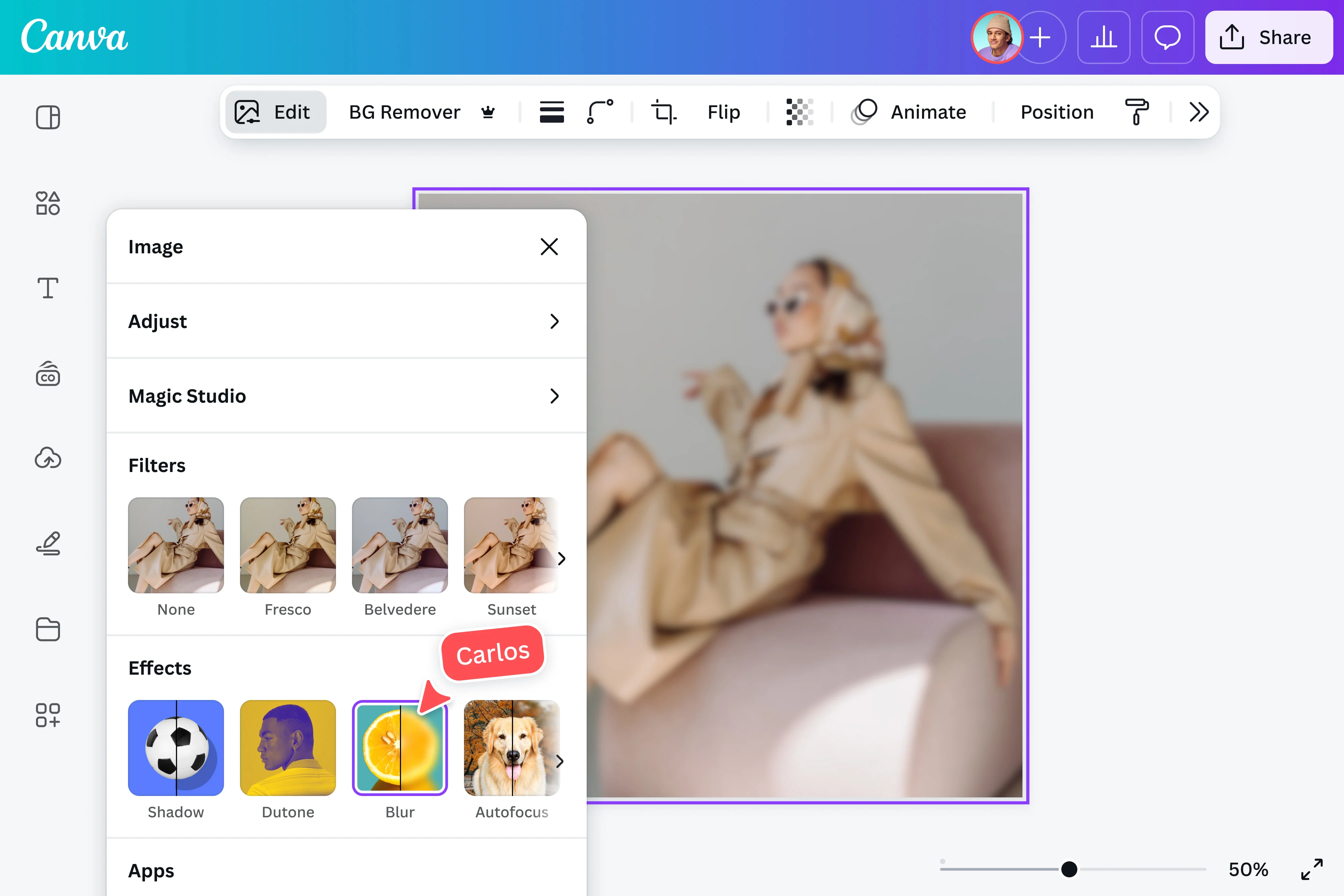
Best for: Simple “quick blur” inside Canva.
6) Bonus: desktop editors (great blur, more setup)
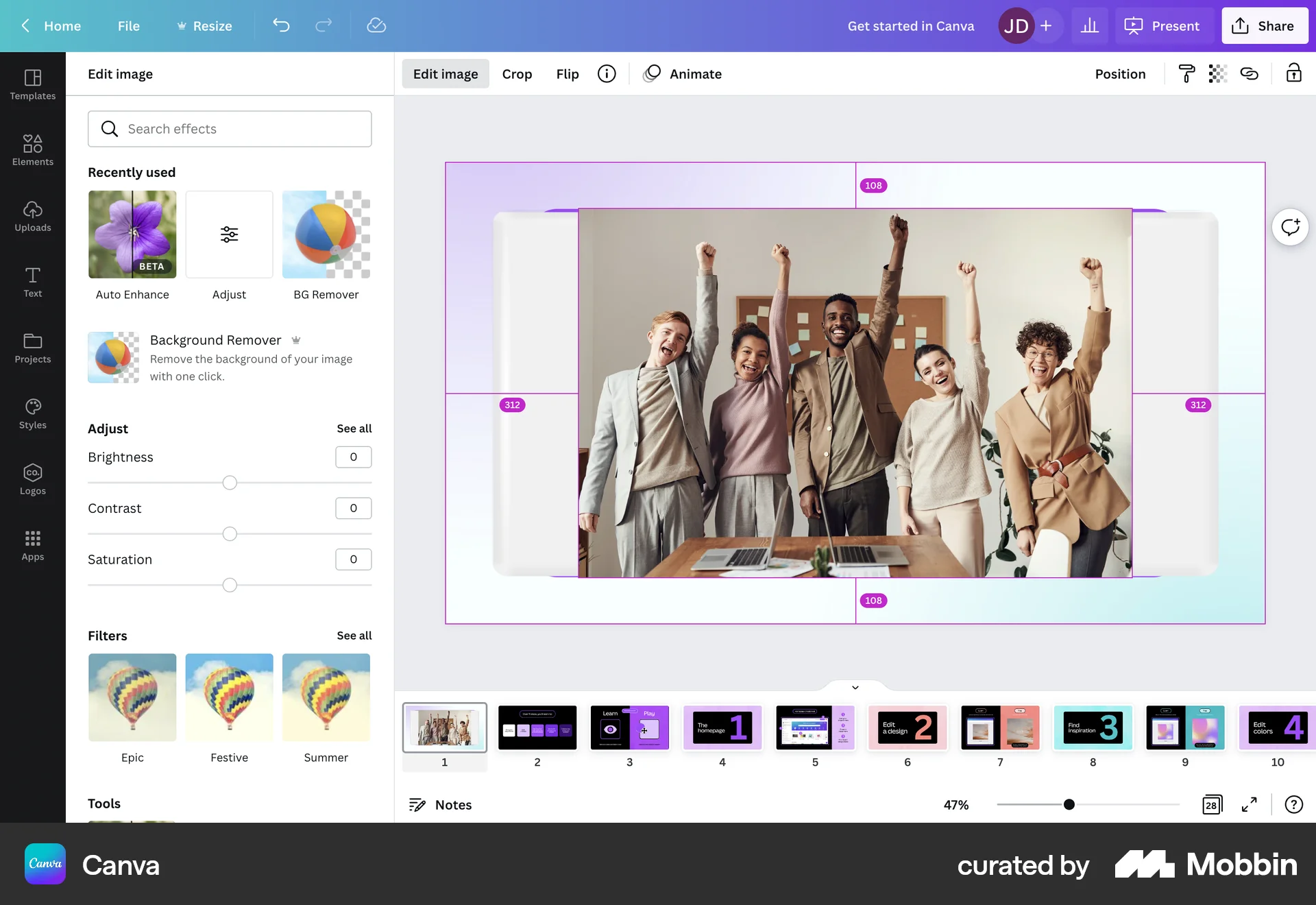
Desktop editors can be excellent for blur—especially if you want to combine blur with larger retouching workflows. The tradeoff is time: installs, exports, re-imports, and sometimes a steeper learning curve.
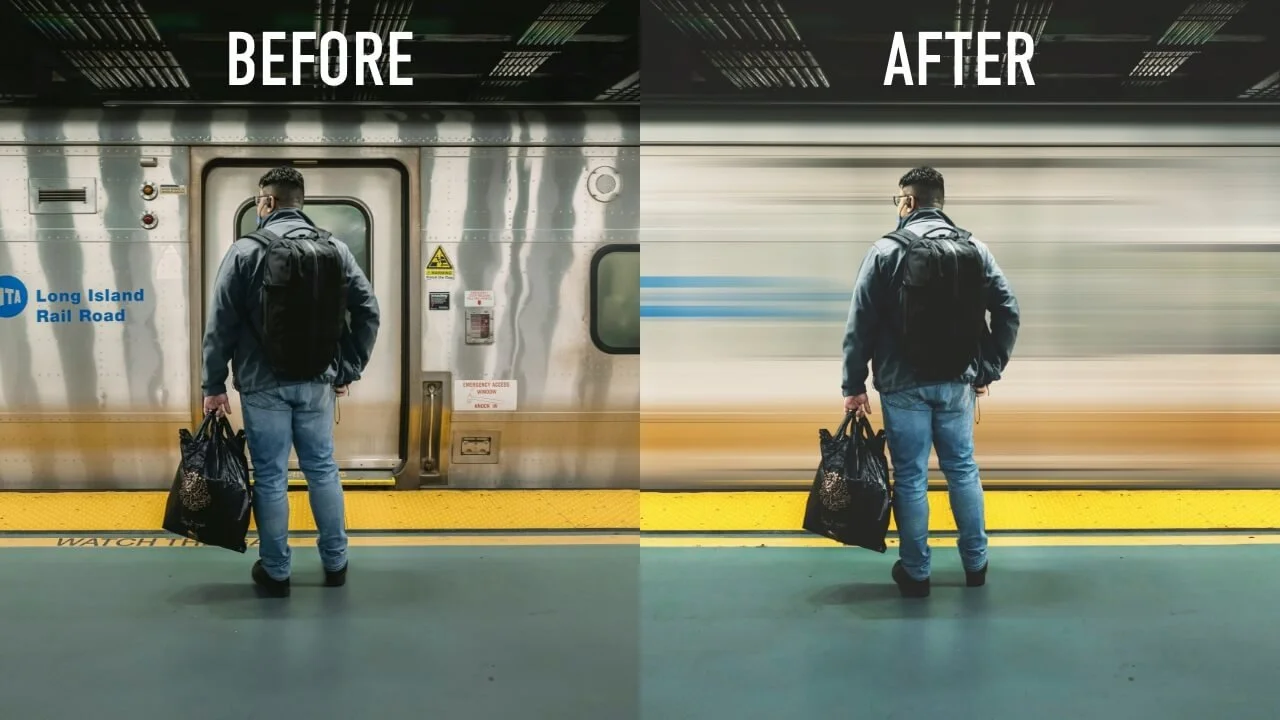
7) Bonus: specialty blur types (motion / tilt-shift)
Some tools shine in specific blur styles like motion blur, radial blur, or tilt-shift. If your goal is “cinematic” blur rather than pure privacy masking, look for apps that support those styles well.
Which blur app should you choose?
| Use case | Best option |
|---|---|
| Blur inside Canva | BlurFish |
| Professional photography | Adobe Photoshop |
| AI product blur | Pixelcut |
| Quick online blur | Fotor |
| Simple slider blur | Canva |
Why BlurFish stands out
Most blur tools treat blur as a secondary feature. BlurFish is built around blur creativity, speed, simplicity, and Canva integration. If your workflow lives in Canva, it’s the most frictionless solution.
Final verdict
For most users—especially Canva creators—BlurFish is the best blur app in 2026 because it combines simplicity, creative control, and direct Canva integration. If you need ultra-advanced photo manipulation, Photoshop still wins. But for fast, practical, everyday blur work, BlurFish is the top choice.
Next reads: Best blur apps for Canva, Top tools to anonymize photos.